
To choose Shopify apps without slowing down your store, install only apps that solve a real problem, check how each one loads on your shopfront, review its permissions and monthly cost before you click Install, and test your speed before and after. Most slow Shopify stores aren’t slow because of Shopify. They’re slow because of apps.
The Shopify App Store has an app for almost everything, which is exactly the problem. Each one looks small on its own, but together they can add seconds to every page. This guide shows you how to pick apps carefully, so your store stays fast, and your monthly bill stays sensible.
Why Apps Are the Biggest Reason Shopify Stores Slow Down
Not every app affects speed. It helps to split them into two groups:
- Back-end apps work only inside your Shopify admin, such as accounting, inventory, shipping labels or reporting. Shoppers never load them, so they don’t affect store performance.
- Front-end apps add something customers see, such as review widgets, popups, live chat, upsells, wishlists or currency switchers. Each one usually loads its own scripts and styles on your pages.
Front-end apps are the ones to watch. A study of more than 400 live stores by Hyperspeed found that stores running 16 or more apps had PageSpeed scores about 15 points lower on average than leaner stores.
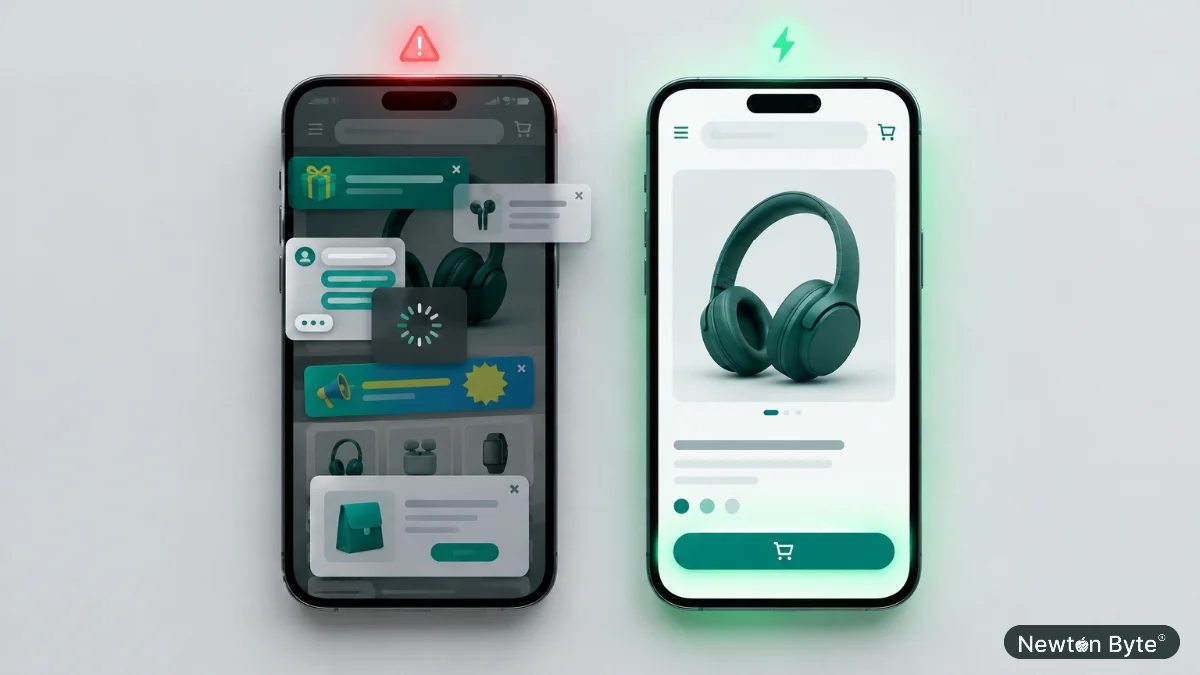
Speed matters because it affects sales. In the well-known “Milliseconds Make Millions” study by Deloitte and Google, a 0.1-second improvement in mobile site speed was linked to an 8.4% lift in retail conversions. Most of your shoppers are on their phones, often on mobile data, so every extra script counts.
Ask Three Questions Before You Open the Shopify App Store
The fastest app is the one you never install. Before browsing the Shopify App Store, ask yourself:
- What exact problem am I solving? “More sales” is too vague. Shoppers keep asking about delivery times” is specific and might be solved with a line of text on the product page instead of an app.
- Can Shopify or my theme already do this? Many modern themes include features that used to need apps, such as product badges, size charts, recommended products and announcement bars. Shopify itself also covers things like basic discounts, bundles and email marketing.
- Will this app run on my shopfront? If yes, it needs to earn its place, because it will cost you some speed.
How to Read a Shopify App Store Listing Properly
Every app on the Shopify App Store has a listing page. Most people look at the star rating and the screenshots. These details tell you far more:
Recent reviews, especially the bad ones
On the Shopify App Store, sort reviews by most recent and read the one- and two-star reviews first. Look for patterns like “slowed my store”, “broke my theme”, “hard to uninstall” or “support never replied”. Also check whether the developer responds politely and offers fixes.
The Built for Shopify badge
Apps on the Shopify App Store with this badge have passed Shopify’s stricter quality checks. One of the requirements, according to Shopify’s developer documentation, is that the app must not reduce your shopfront’s Lighthouse performance score by more than ten points. That’s a useful signal, but it isn’t a guarantee. Ten points is still noticeable, and several badged apps together can add up.
The pricing section
Many Shopify App Store listings say “Free to install”. Look past that. Check what’s included in each plan, whether there are usage-based charges, and which features are locked behind higher tiers.
Compatibility details
Check which other apps and tools it works with, which languages it supports (important if you sell in Arabic and English), and whether it mentions support for Online Store 2.0 themes.
The developer behind it
See how long the app has been around, what else the developer has built, and how you can reach support. A single app from an unknown developer with a handful of reviews is a bigger risk than a well-supported one with a long history.
Check App Permissions Before You Click Install

When you install an app from the Shopify App Store, Shopify shows you a screen listing what the app wants to access, such as your products, orders, customers or theme files. Most people click straight through. Take thirty seconds to read it.
- Does the access match the job? A size chart app has no obvious reason to read your customer data. A review app needs order information to request reviews, which makes sense.
- Be careful with customer data. Names, emails, phone numbers and addresses are sensitive. Only grant access to apps you trust and actually need.
- Watch for theme access. Apps that can edit your theme files can add code that stays behind after you uninstall them.
- Remove apps you no longer use. An unused app with access to your data is a risk with no benefit.
The same principle applies to people. If an agency needs access to your store, give them collaborator access rather than your login, as we explain in our guide to choosing Shopify partners.
Do the Math on Recurring App Costs
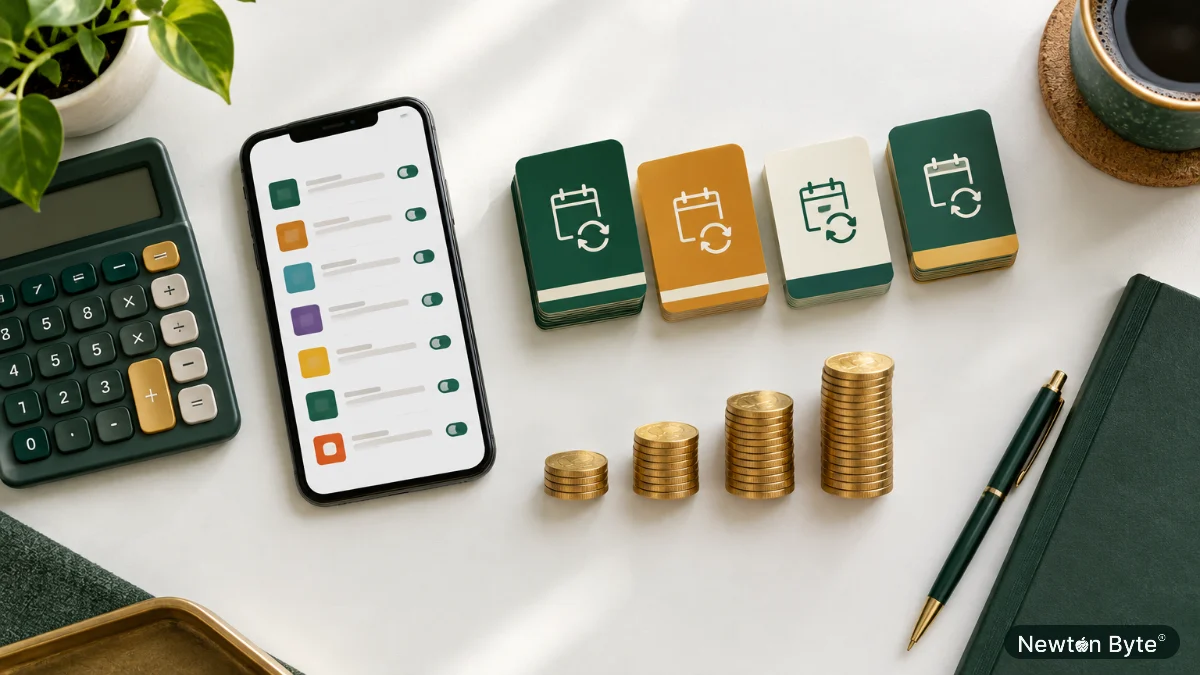
Apps on the Shopify App Store often look cheap on their own, so their fees are easy to underestimate. Here’s a simple example of a typical app stack. The prices are illustrative, so swap in your own:
| App type | Monthly cost (USD) | Yearly cost (USD) |
|---|---|---|
| Product reviews | 15 | 180 |
| Email and SMS marketing | 45 | 540 |
| Upsells and bundles | 20 | 240 |
| Popups | 10 | 120 |
| Live chat | 15 | 180 |
| Wishlist | 8 | 96 |
| Total | 113 | 1,356 |
That’s more than USD 1,300 a year for six apps, before any usage-based charges. A few ways to keep recurring app costs under control:
- Know when free trials end. Set a reminder a few days before, and decide whether the app has earned its fee.
- Watch usage-based pricing. Email, SMS, and review apps often charge more as your orders or contacts grow.
- Look for overlap. Many stores pay for two apps that do the same job, like two different upsell tools.
- Check your Shopify bill monthly. App charges appear on your Shopify invoice, so it’s the easiest place to spot apps you forgot about.
App Compatibility: Your Theme, Other Apps and Your Workflow
An app can have great reviews on the Shopify App Store and still cause problems if it doesn’t fit your setup. Check three kinds of app compatibility:
- With your theme: modern apps add features through app blocks and app embeds, which you can switch on and off in the theme editor. Be wary of apps that ask you to paste code into your theme files, because that code often stays behind after you uninstall the app.
- With your other apps: two apps that change the same thing, such as the cart drawer or product prices, can clash. If you already use an upsell app, a second one that edits the cart is likely to cause conflicts.
- With your business: if you sell in Arabic and English, in several currencies, or with cash on delivery, check that the app handles these properly before you rely on it.
The safest habit is to duplicate your live theme and test new apps on the copy first. If something breaks, your customers never see it.
How to Test an App’s Impact on Store Performance
You don’t need to be a developer to measure this. Follow these steps whenever you add a front-end app from the Shopify App Store:
- Record a baseline. Run your homepage and a product page through Google PageSpeed Insights on mobile. Run each test three times and note the average, because scores vary between runs.
- Install the app on a duplicate theme and enable only the features you need.
- Test again using the preview of the duplicate theme on the same pages.
- Compare the results. If your score drops noticeably for a feature that isn’t central to sales, look for a lighter alternative.
- Keep an eye on real-world data. Shopify’s web performance report in Analytics shows how your store performs for real visitors over time.
Speed also affects your Google rankings. Our guide to technical SEO in the UAE covers the other factors that matter.
Audit Your Shopify Apps Every Quarter
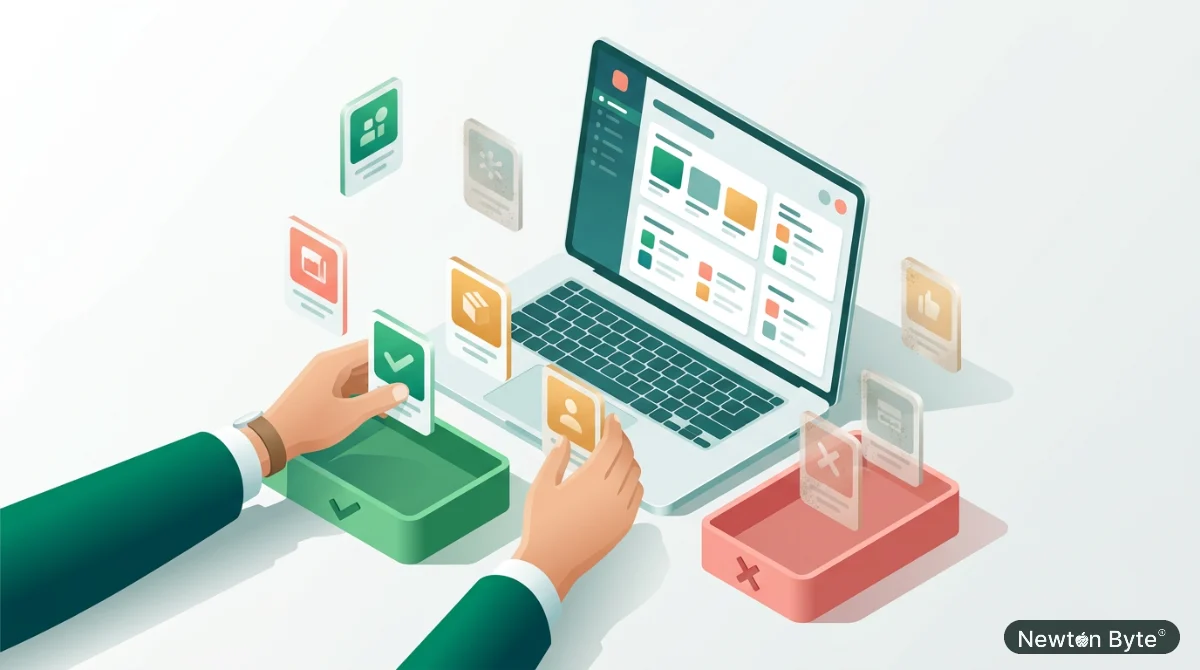
Apps from the Shopify App Store pile up over time. Every three months, open your list of installed apps and go through each one:
- Is it still used? If nobody has opened it in months, remove it.
- Is it paying for itself? Many apps show their own results. If an upsell app brings in less than it costs, it isn’t worth it.
- Has your theme or Shopify caught up? A feature you once needed an app for might now be built in.
- Did uninstalled apps leave code behind? Apps that use app blocks and embeds clean up after themselves. Older apps that wrote directly into your theme files may have left scripts that still load on every page. Search your theme code for the app’s name, and remove leftovers on a duplicate theme first.
If you’d rather not do this yourself, an app and speed audit is part of our maintenance and support service.
Frequently Asked Questions
How many Shopify apps is too many?
There’s no magic number, because back-end apps barely affect speed, while a single heavy front-end app can. As a rule of thumb, keep front-end apps to the few that clearly help you sell, and question everything else.
Do uninstalled apps still slow down my store?
They can. Apps that added code directly to your theme files may leave it behind after uninstalling. Apps built with app blocks and app embeds are removed cleanly.
Are free apps on the Shopify App Store safe to use?
Many are excellent. Free doesn’t mean risky, and paid doesn’t mean fast. Judge every app on its reviews, permissions, developer support and speed impact, whatever its price.
Does the ‘Built for Shopify’ badge mean an app won’t slow my store?
It means the app met Shopify’s quality and performance standards, including a limit on how much it can lower your shopfront performance score. It’s a good sign, but you should still test it on your own store.
Should I build a custom feature instead of using an app?
Sometimes. If you rely on an app for something central to your store, or you’re paying a high monthly fee for a feature you only use partly, custom Shopify work can be faster and cheaper over time. Our custom ecommerce team can help you weigh it up.
Keep Your App Stack Lean and Your Store Fast
The best Shopify stores aren’t the ones with the most apps from the Shopify App Store. They’re the ones where every app has a clear job, a fair price and a small footprint. Ask why before you install, read the listing properly, check permissions and costs, test your speed, and review your apps every quarter.
Thinking about your platform more broadly? Read what ecommerce is and how an online store works, or compare options in is WooCommerce right for your online store. And if your Shopify store feels slow, Newton Byte provides Shopify development and speed audits for UAE businesses. Contact us, and we’ll show you which apps are worth keeping.